Showing posts with label iPhone. Show all posts

Thursday, August 30, 2012

TSP2013 - Sleep Time

Sleeping by Ana Tirolese ©2012
Sleeping
Watercolour and Ink


The Sketchbook Project Logo, Property of Art House Co-Op: http://tinyurl.com/czsa4vq

Around 11pm it is sleep time.

With luck, I'll sleep the whole night through and feel rested in the morning.

This is my last entry in the Sketchbook Project 2013.

Click here to see my Sketchbook Project 2013 submissions in one place.

Tuesday, August 14, 2012

TSP2013 - Eat Breakfast and Make To-Do List

Eat Breakfast and Write To-Do List, Bowl of Cereal with iPhone Apps - Pen and Ink with watercolour by Ana Tirolese ©2012
Eat Breakfast and Organize Day's Schedule
Pen and Ink with watercolour
The Sketchbook Project Logo, Property of Art House Co-Op: http://tinyurl.com/czsa4vq
I have my breakfast in front of the computer, more often than not. Usually, it is a bowl of cereal, however, I sometimes will have toast or raisin bread.

While I eat breakfast I organize my day. I used NowDoThis.com to set up a bunch of tasks that need to be done. I grab the information from the different apps and calendars to organize my work day, my housework, and my drawing time.  I find I am most productive when I set up my To-Do list / schedule this way.

NowDoThis is a simple website in which you add the tasks that you want to do in the order you want to do them in. I have tweaked my list several times to find what works for me and I keep a copy of the list in Evernote that I can copy and past it into the NowDoThis window. I tweak it some more for a particular day, then go for it.

NowDoThis screen shot
Click on the Edit List link and this window comes up.

NowDoThis screen shot
Write your To-Do list in the box in the order you want to do it in. You can copy and paste it from another program such as a Word file or an Evernote file. You can edit the list throughout the day if you find that you need to change the order or add/remove tasks. Click Ready button when your list is complete and you want to start.

NowDoThis screen shot
If you add a time to your list, as above, NowDoThis will give you a simple count-down timer. Click Start when you are ready and it will start to count down. 
NowDoThis screen shot
View of the count-down timer.

NowDoThis screen shot
When your time is up, you will hear a "ding". You can then click the Done button.

NowDoThis screen shot
The next item in your list will pop up. I did not add a time limit to this item so no count-down timer showed up.  I will click  the Done button when I finish this and the next item on the list pops up. I usually alternate between a computer task and a non-computer task to force me to get up often throughout the day. You can have several timed items in a row if you want to control your computer time. For example, 30 minutes - read email; 30 minutes - facebook; 70 minutes working on book project; etc. 

NowDoThis screen shot
When you complete everything on your list you get this very satisfying All Done! message. I try to organize my day so that I get a certain amount of housework completed before 9:00am, which is when my work day starts. I then include a few housework items that take only a few minutes here and there in order to get off the computer and stretch my legs. I have all my regular task, computer and otherwise, completed early in the day so that I have the rest of the day to do creative work with no time limits. 
You may also view my uploads on my Art House Co-op profile for The Sketchbook Project 2013.

Saturday, August 11, 2012

TSP2013 - Time to Get Up


iPod Touch being used as an alarm clock. Pen and Ink with Watercolour by Ana Tirolese ©2013
It's Time to Get Up
Pen and Ink and Watercolour
The Sketchbook Project Logo, Property of Art House Co-Op: http://tinyurl.com/czsa4vqMy alarm goes off at 6:00 am on weekdays. I usually hit the snooze button and it does not go off again until   6:15 am. I get up at 6:15 if I need to take my husband to work so I get the vehicle for the day, or if I need to do last minute lunch preparation for him. Otherwise, I stay in bed until 7:00 am.

I drew my iPod Touch for this image. I actually use my iPhone more often than not as the alarm clock so that I can charge it overnight. I put the iTouch in its place so I have a clock during the day in the bedroom (and so that it charges too). I like using my iPhone and iTouch as an alarm clock because even if the power goes off in the middle of the night, it still is charged enough to get us up on time in the morning. The alarm clock app I use is very versatile and permits multiple alarm settings, as well as snooze settings. I have my snooze setting set for 15 minute increments during the week.

This day I was up at 6:15 am because I had a full day planned and needed the extra 45 minutes getting up at this time afforded me.


You may also view my uploads on my Art House Co-op profile for The Sketchbook Project 2013.


Thursday, August 9, 2012

Every Day Matters #16 - Draw Your Favourite Tool

EDM 16 - My Favourite Tools - iPhone and Lamy Fountain Pen - Pen and Ink with Watercolour by Ana Tirolese ©2012
My Favourite Tools
Pen and Ink with Watercolour
It seems that electronic devices and drawing implements are tops in my favourite tools category.  This is so true.

I love my iPhone because it can do so much. You can see an earlier version of this challenge that lists many of my iPhone uses. Basically, I use it as a PDA and memory booster. The camera feature is fabulous too because I often myself in need of a camera, especially to capture visual ideas for later art pieces. I even have a gorgeous iPhone case for it.

Back in 2009, I drew an MP3 player as my favourite tool. It still is a favourite tool. I love to listen to audiobooks while I do artwork. However, I tend to use my iPhone now unless it is an incompatible file for the iPhone.

Ever since my husband gave me my first Lamy fountain pen, I have been in love with it. It feels great in my hand, the ink flows beautifully, and I love that I can see when the ink is depleted through the window in its side. I still love my coloured pencils and my watercolours, but there is nothing so pleasurable as drawing with a Lamy Safari pen.


Monday, August 6, 2012

Every Day Matter #14 - Draw What You See in the Morning


EDM 14, My Morning View - Pen and Ink with Digital Colour by Ana Tirolese ©2012
My Morning View
Pen and Ink with Digital Colour
This is what I see in the morning as I get up.

EDM 14, My Morning View - Pen and Ink by Ana Tirolese ©2012
Original Pen and Ink Rendering
My alarm will go off and I will either hit snooze or off. If Anthony is still asleep, I wake him. Sometimes Anthony is up before me.

If I don't need the vehicle for the day, then I stay in bed for another hour and start my day at 7:00am. If I need the vehicle, I get up with Anthony to take him to work.

I was going to draw Anthony sitting on the edge of the bed playing his guitar. He usually plays his guitar every morning before getting ready for work. He will play a tune or two, depending on the time. It is really enjoyable. I will draw that scene at a later date.


Sunday, June 3, 2012

Draw your favourite Tool

Every Day in June Challenge # 2
(and EDM # 16) 

Draw your favourite tool
Pen and Ink and Watercolour
My iPhone. This was a gift from my son. I love it because it was a gift from him and because I used it all the time.

I rarely use it as a phone, but I do text with it. I keep track of my schedule, my contacts and my to-do lists. I also use it as a camera, to look up information, to check online accounts, and to catch up on my reading.

Then there are the APPs! Oh.So.Many.APPs!

I have all kinds of productivity apps, along with other apps.  I even have games, but I rarely use those.

I do

  • catch up on my reading with Instapaper and eBook apps. 
  • use the Weight Watcher's app to track my points and weight
  • use Daily Routines app to keep track of my daily routines
  • use Cozi Calendar to keep track of my and my family's schedule
  • use Grocery Shopping app to make my grocery list. It also keeps track of prices so I have an idea of how much I'll need to put aside for each shopping trip
  • use social network apps (Twitter, Facebook, Google+) when I am bored
  • check my email when I am out
  • send and receive text messages
  • use Ache Break app to remind me to stretch at regular intervals
  • use it as a camera to snap quick photos, some for reference for drawings, some family events, and some "just because" I can.
I use the iPhone for more than this, but these are used nearly daily, and some, several times a day.

This is the handiest gadget, ever!

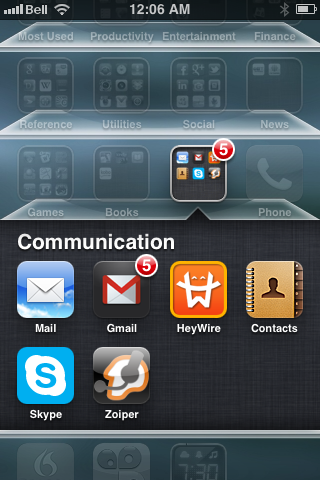
Screen Shots of Some of My Apps on My iPhone:

MAIN SCREEN
The first three apps in the top row are used daily.

These apps are not used very often.

I tend to use the YouTube, Netflix, Shazam, and IMDb more often from this list, than the others, but they are not used daily.

I use these as needed to check my accounts.

These ones are rarely used, except as needed.

I don't often open this group. I get to the camera through a different method.

These ones only get used occasionally  and the top row more than the others.

Always good to know what is happening in the world.

When I am not reading saved articles in InstaPaper, I will come on here and read a book if I find myself in a situation with time on my hands.

I check my mail through the Gmail app. Otherwise, I only use the other apps as needed.